1) Install Teagram in Teams
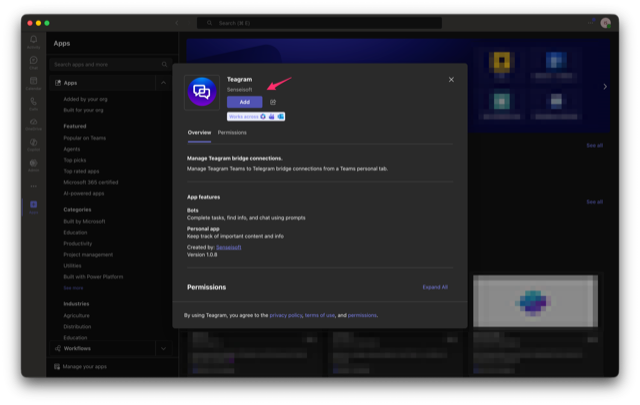
Install from the Teams store, then add Teagram to your workspace (in Teams, click Apps -> find Teagram -> click Add).
Connect Teams chat to Telegram group. Automatically relay messages and files between the two, in real time.
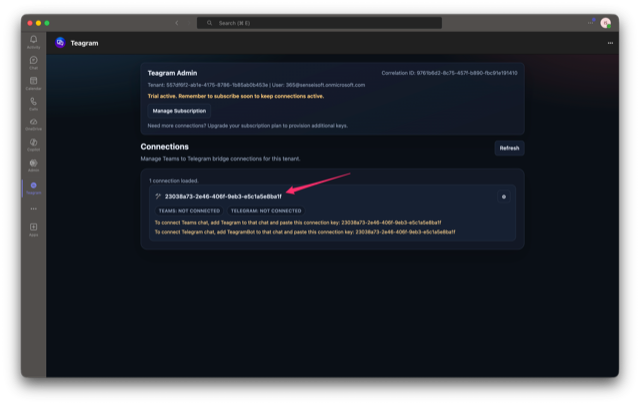
After installation, open the Teagram tab to find your connection key(s). Keys are provisioned automatically based on your plan.
5 steps, ~5 minutes, intended for Teams workspace admin.
Install from the Teams store, then add Teagram to your workspace (in Teams, click Apps -> find Teagram -> click Add).
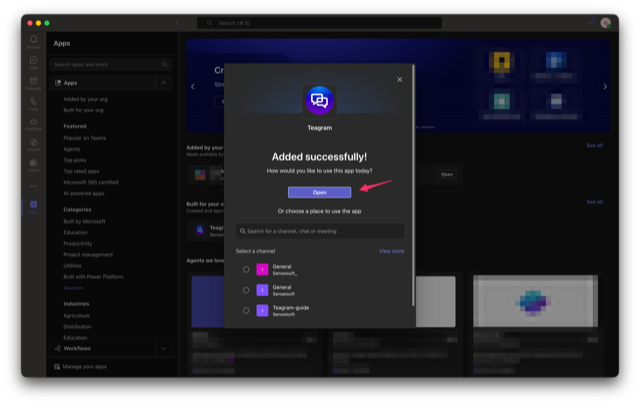
After adding, click Open. In the tab, you'll see the status of your bridge and connection key. Copy this key.
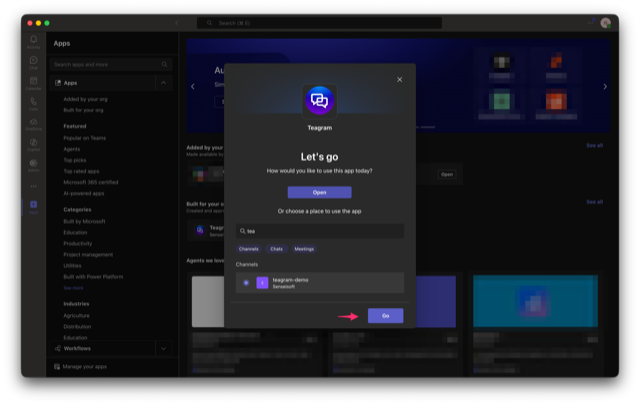
Click Apps -> find Teagram -> find chat in the window -> select it and click Go
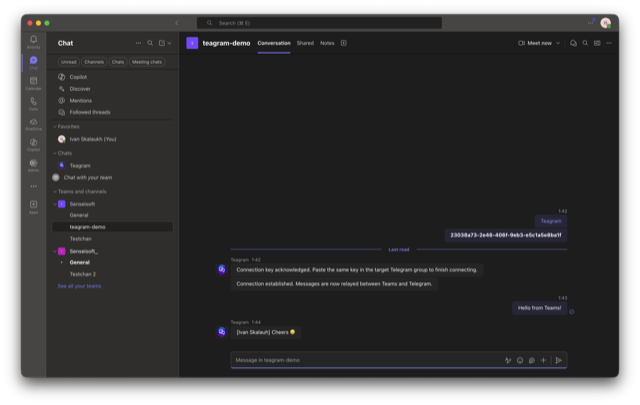
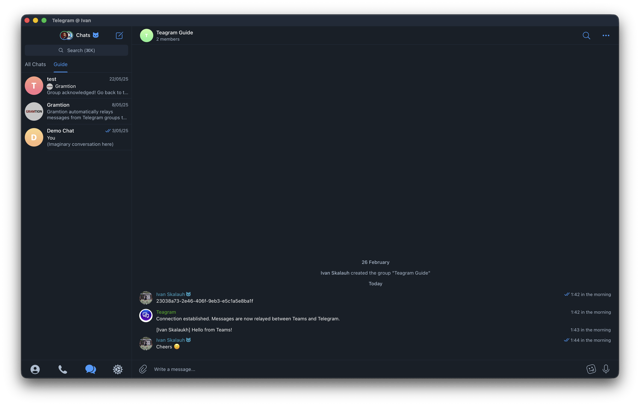
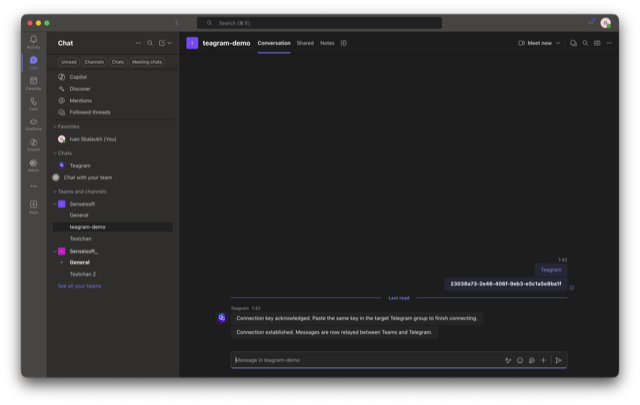
Send the key as a message in the Teams chat you want to connect.
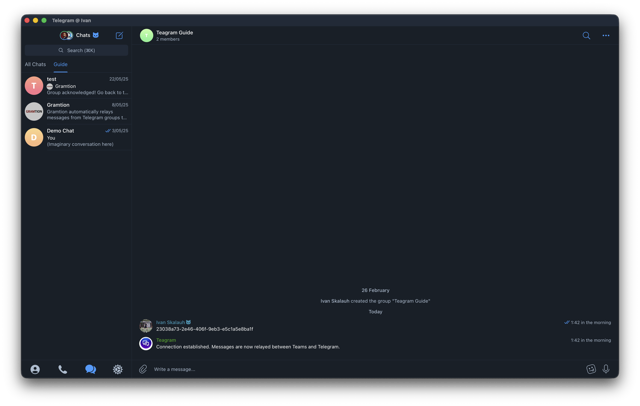
Invite @TeagramBot and send the key in the target Telegram group. Teagram matches both sides and activates the bridge.
You can view connection status, tweak per-connection settings or reset it in the Teagram Admin tab in Teams.